4 Steps to Creating a Self-Paced Session with AI Narration in BRAVOZONE
Customizing your session branding creates a professional experience for your audience. BRAVOZONE offers three main ways to personalize your presentation:
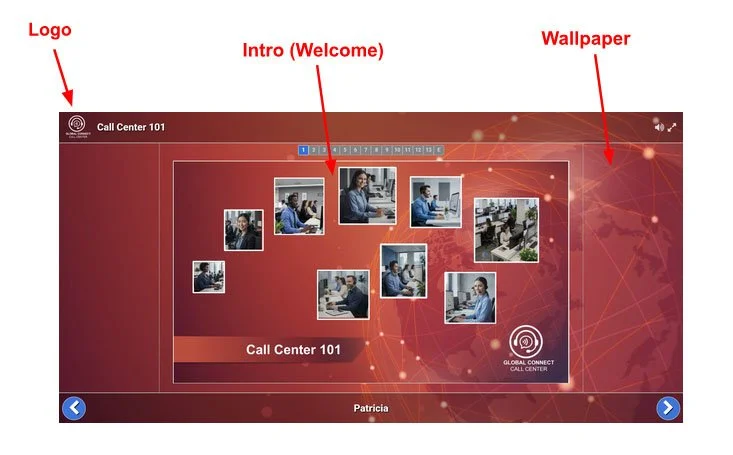
Add a Logo – Display your organization's logo consistently across all session styles.
Intro (Welcome) Screen – Welcome participants with a custom title page, image, or video upon launch.
Wallpaper – Customize the background theme to match your brand or topic.
Wallpaper (Background Image)
Supported in Quiz Show, Spark, Tally, Dash, and Confidence sessions. Wallpapers allow you to tailor the overall session backdrop to complement specific topics or corporate branding guidelines (see example below).
Logo Integration (Custom Logo): All 10 session formats support adding a logo, which continuously appears in the upper-left corner of the screen throughout your presentation.
Intro Screen (Welcome Page): Available across all 10 session formats, this feature allows you to display text with an image, a full graphic, or a welcoming video as participants enter the session.
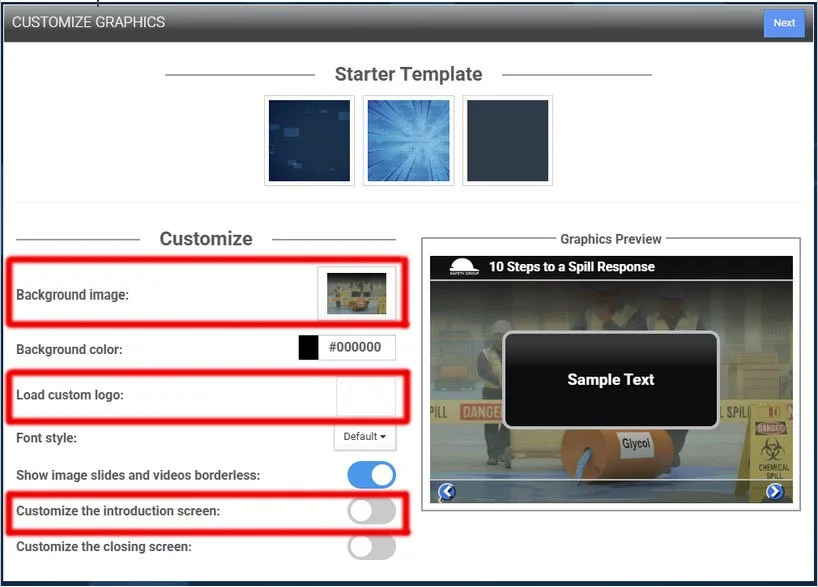
How to make your Intro Screen or Wallpaper Graphic
Of course, any graphic program like Photoshop will work. However, you can also use PowerPoint, which can do a lot graphically if you know some basics. All the graphics shown here on this page were created using PowerPoint.
VIDEO: Using PowerPoint to Create Wallpapers and Title Pages
How to make an image semi-transparent.
How to export the image for use in the BRAVOZONE.
How to make a professional backdrop to use as a wallpaper, like seen in most news briefings on TV.
VIDEO: Using PowerPoint to Remove Backgrounds
How to remove a background from what you want to highlight. Remove the background around a logo, or remove the background from an image to highlight a person or item.
Making your own clip art or graphic logo.
VIDEO: Dropping the opacity of a background for wallpaper
Why you may want to make your background/wallpaper more subtle.
How to use the transparency option
How to get an exact RGB or a color match.
Examples:
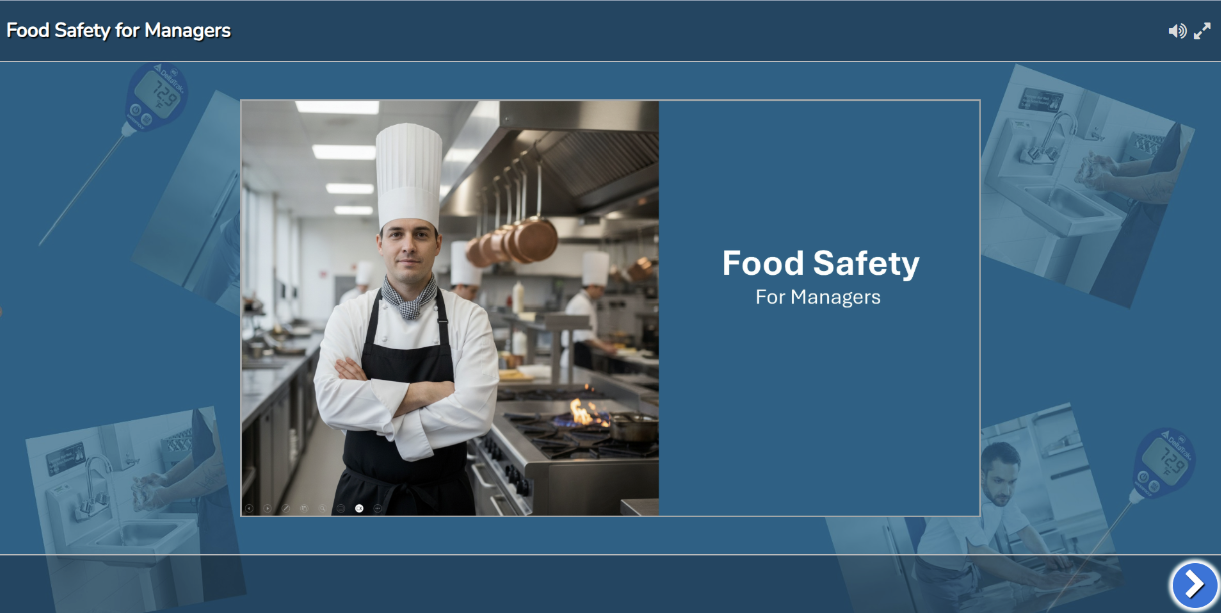
PNG or JPEG?
BRAVOZONE can take both, plus some other types of files, unless you are uploading an image like a logo where you do not want the solid box around it; it is recommended that you save the files like PowerPoint slides as JPGs. PNG files are much larger and may cause images to load more slowly.
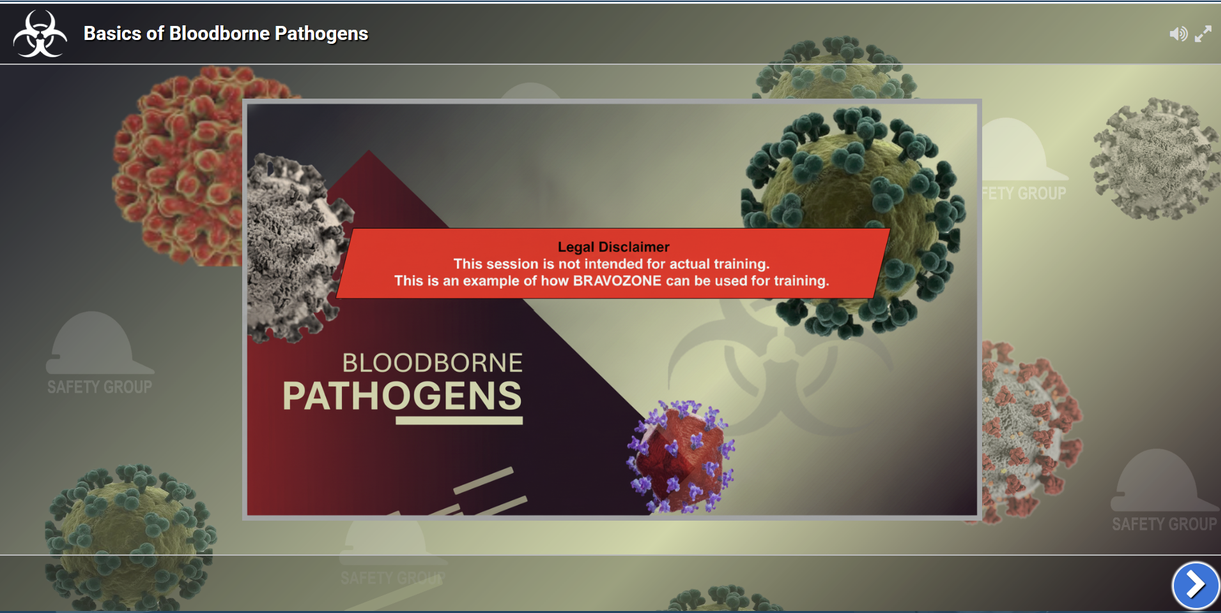
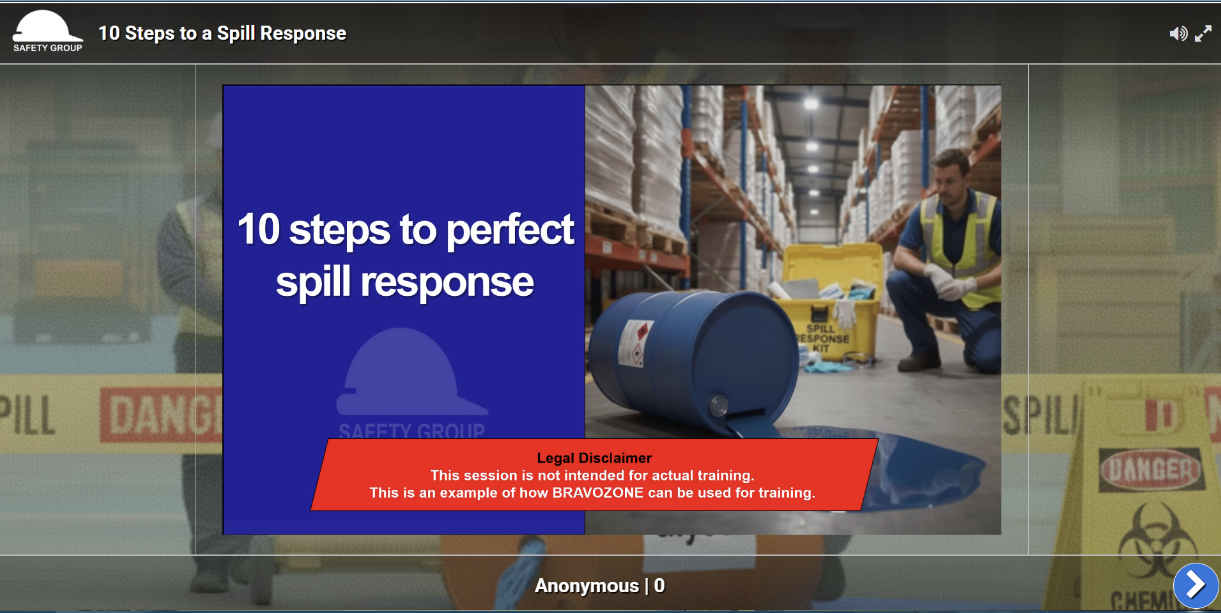
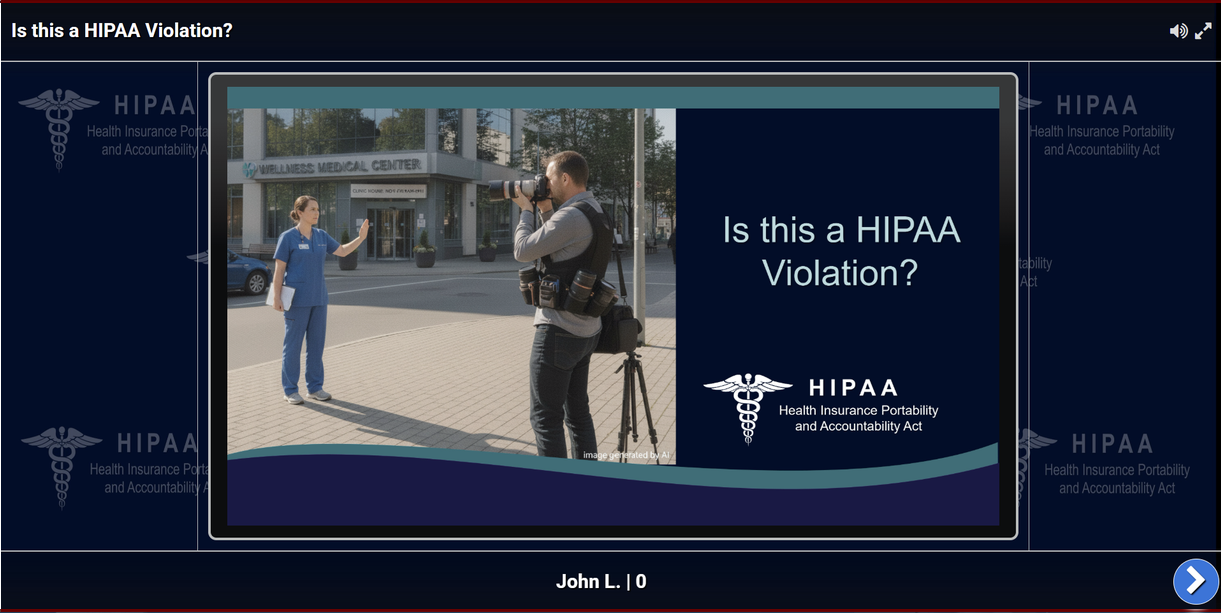
This is how the wallpaper appears with the questions in the session.
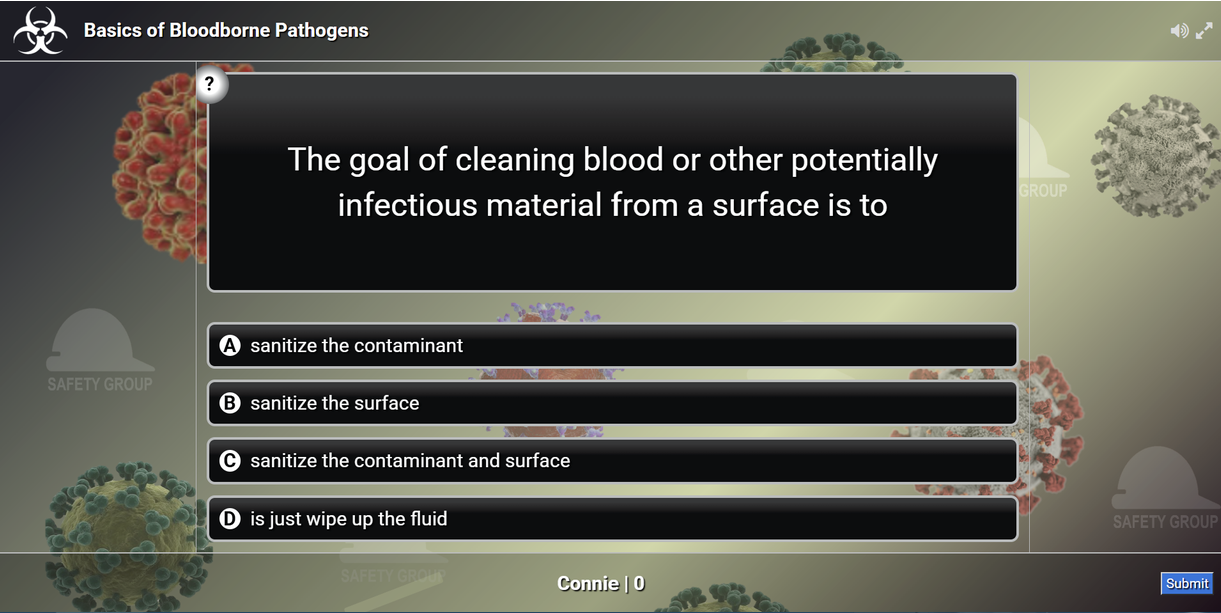
In this image, we show how a semi-transparent background gives a nice branding look without distracting from what you want users to focus on.
You can also see what was used for the title slide. The wallpaper design is based on a common backdrop often seen in news conferences.
Want to check out the graphics in this session?
The difference is in the visual presentation: you want images or logos to be subtle (semi-transparent) so they do not compete with what you want the audience to focus on.
This is why understanding how to make images semi-transparent is important.
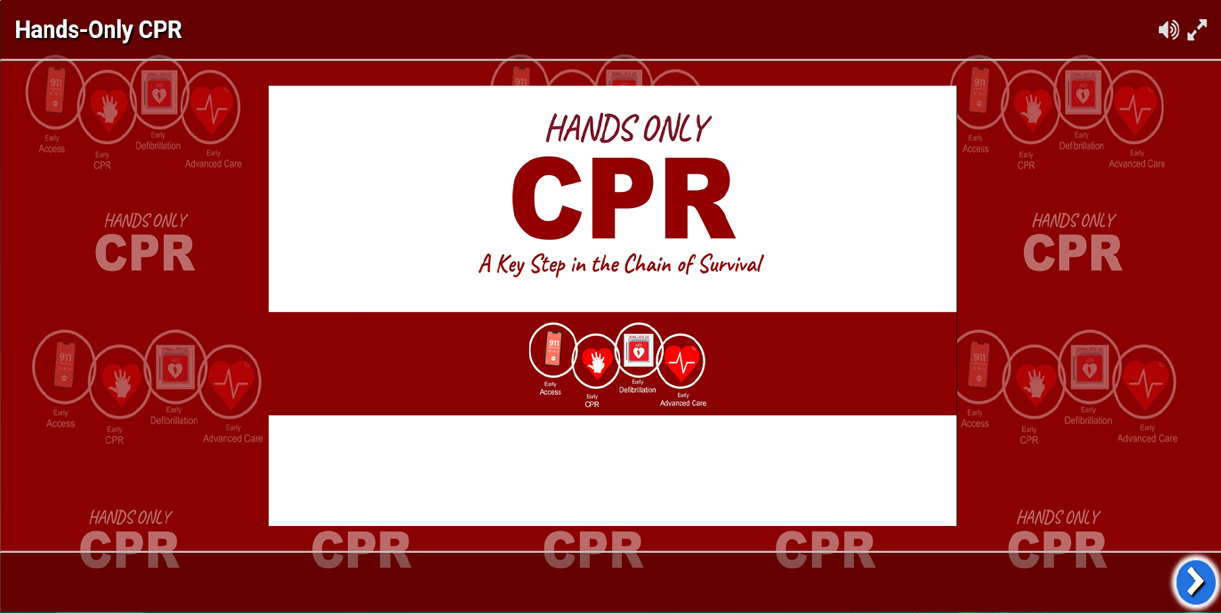
In this example, the wallpaper shows how you can brand your session with your logo. Since the wallpaper is always there, you may choose not to include the logo in the upper-left corner.