Assigning Roles in your Organization
Every organization will have an administrator, this role may be for an organization of 1 or an organization of multiple roles i.e. builders, instructors, students etc. We will address those organization that have multiple roles.

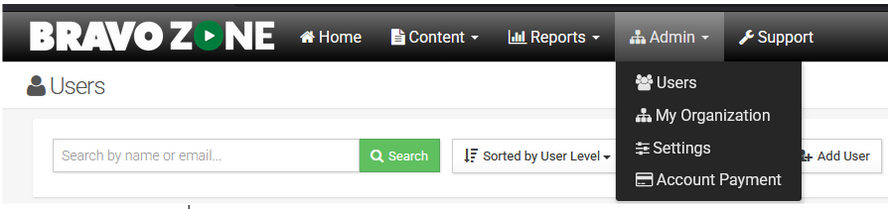
If you are an administrator, you will have a tab that says Admin. Click on this tab and select Users. You will now see all those who are in your organization, which can include students. You have a few options at this point to assign a role. The first is to click on the tab at the top to Add User.

Adding a User
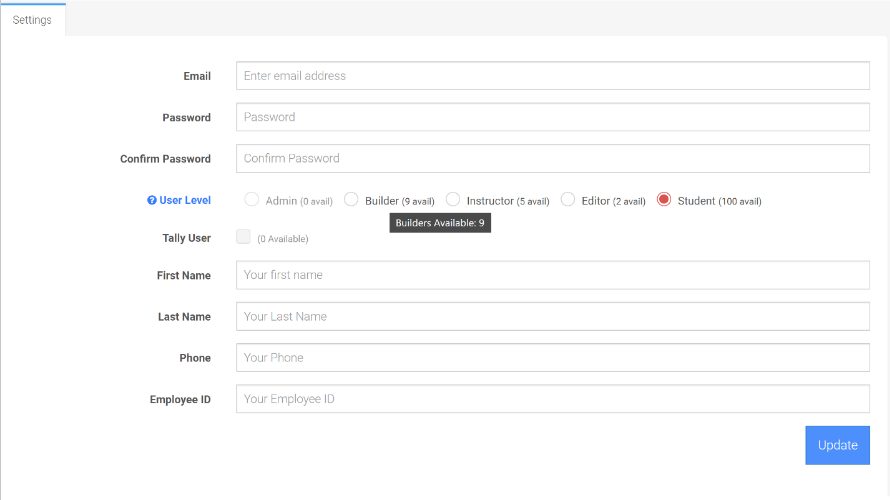
You will see a Settings page, and you will need to fill it out with the new user information. It is straightforward. Phone and Employee ID fields are optional. You will notice 5 User Levels. The default is Student. You will also note that next to each level there is a number of available licenses you have available for that level. This is also seen when you hover over the level in black. Click Update to save information. Also, you can always upgrade or downgrade a level as well. If you choose later to add more levels, this will change.
Changing the Role of an Existing User
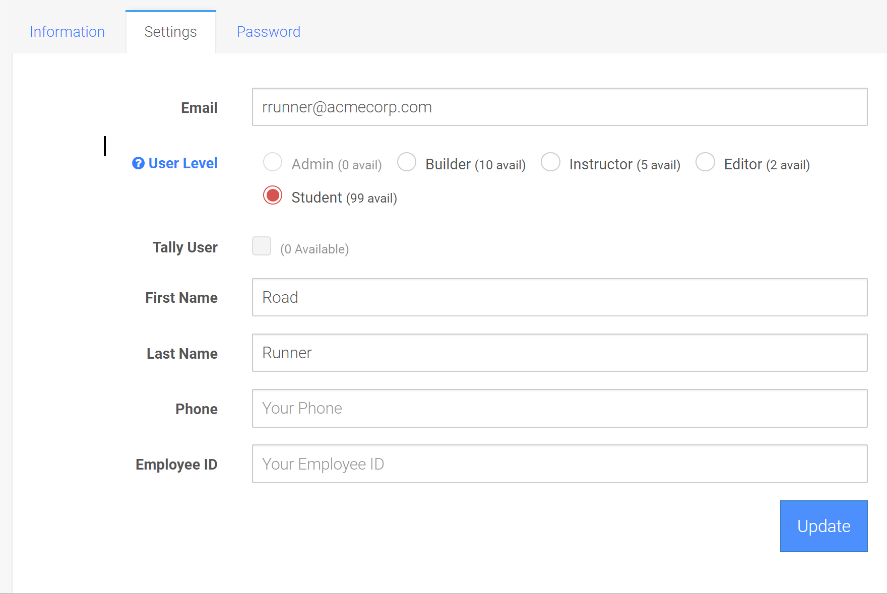
When you, as an Administrator, select Users under Amin tab, you will see all those in your organization. To change their level, click on the user’s name, and you will have the option to change their level. You can also change their Email and password if needed.
Send out a User Invitation
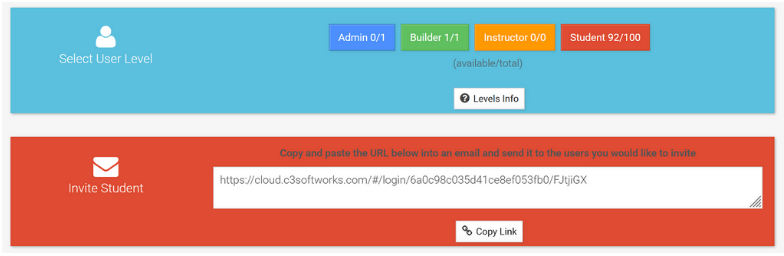
As an Administrator, you can go to the Admin tab and click on Users. Click on Invite Users.
To get an Invite link, click on Invite User.

In this example, the Organization has one unused Builder license and an additional 92 student licenses. If you need additional student licences, just contact us at support@c3softworks.com. Student licenses are free.

In our example below, to get a link to send out to users to create an account, click on the user level. In this example we chose the Student level. Copy the link provided and send that out via email. When they create an account, they will automatically be assigned to your organization.