
Branding Your Presentation in BRAVOZONE
Customizing your session branding creates a professional experience for your audience. BRAVOZONE offers three main ways to personalize your presentation:
Add a Logo – Display your organization's logo consistently across all session styles.
Intro (Welcome) Screen – Welcome participants with a custom title page, image, or video upon launch.
Wallpaper – Customize the background theme to match your brand or topic.
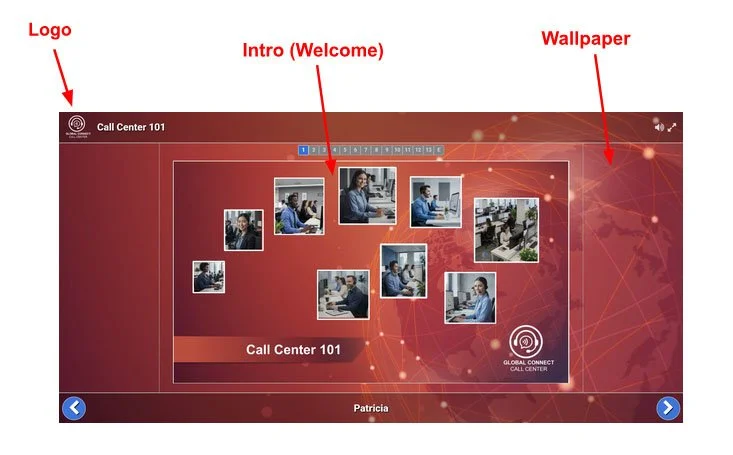
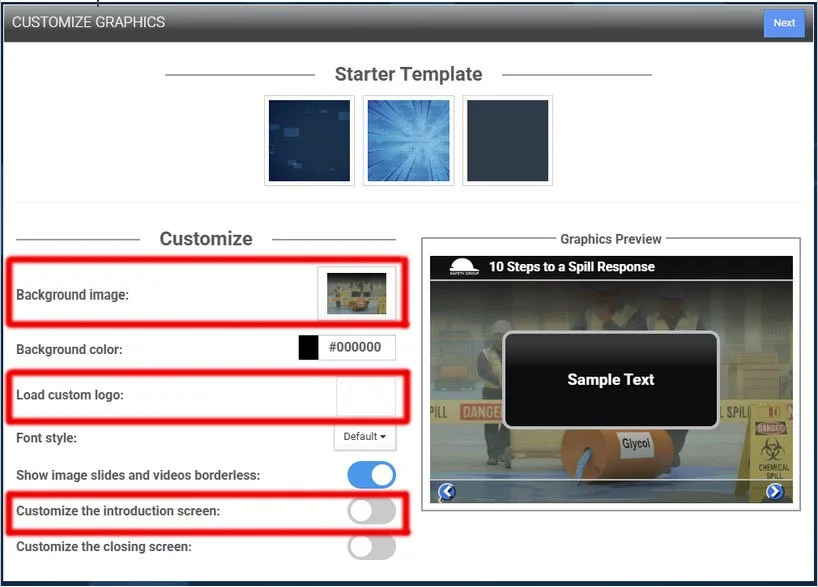
Wallpaper Backgrounds (Background Image): Supported in Quiz Show, Spark, Tally, Dash, and Confidence sessions. Wallpapers allow you to tailor the overall session backdrop to complement specific topics or corporate branding guidelines (see example below).
Logo Integration (Custom Logo): All 10 session formats support adding a logo, which continuously appears in the upper-left corner of the screen throughout your presentation.
Intro Screen (Welcome Page): Available across all 10 session formats, this feature allows you to display text with an image, a full graphic, or a welcoming video as participants enter the session.
3) Publish Your Game
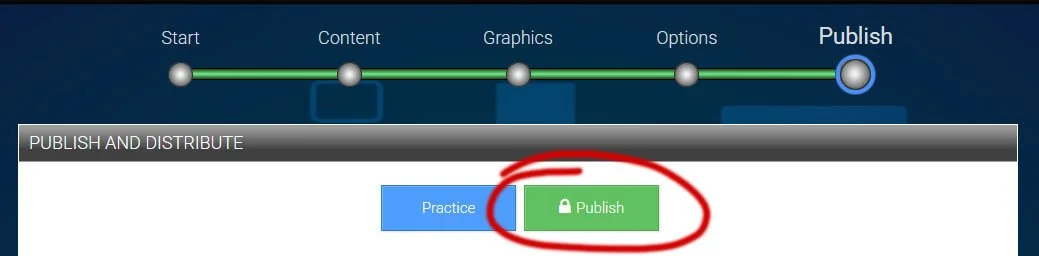
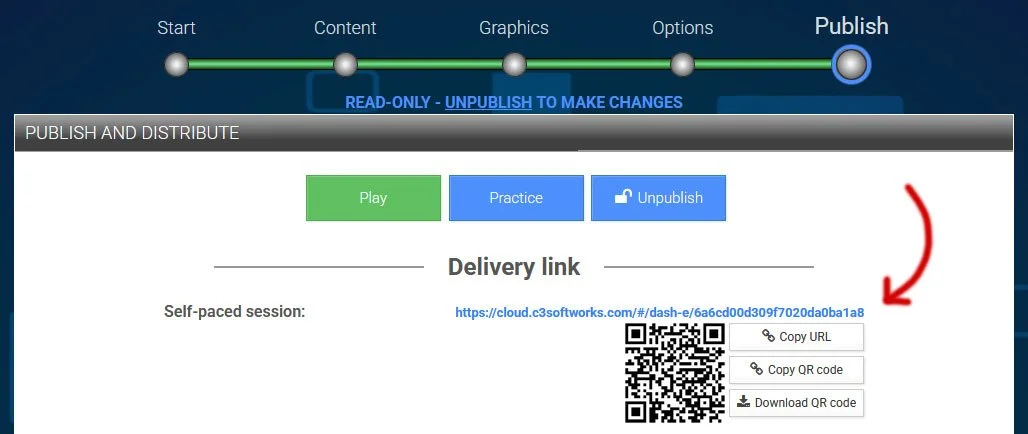
Once your game is ready, click Publish.
4) Locate Your QR Code
Your unique QR code will be displayed on the page alongside your game link.
4) Sharing Options
Under the Publish tab, you have three convenient ways to share your Self-Paced game:
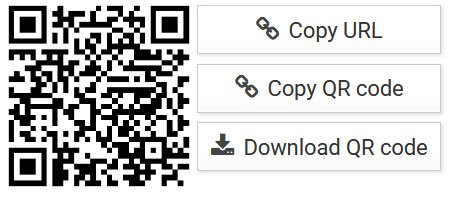
Copy URL: Copy the direct link to paste into emails, messaging apps, or learning management systems.
Copy QR Code: Copy the QR code image directly to your clipboard to paste into documents or slides.
Download QR Code: Save the QR code image (.png) directly to your device for printing on flyers, posters, or presentation materials.
Examples:
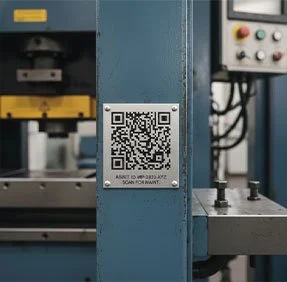
Safety Guides
Place directly on heavy machinery or medical equipment where they are needed most.
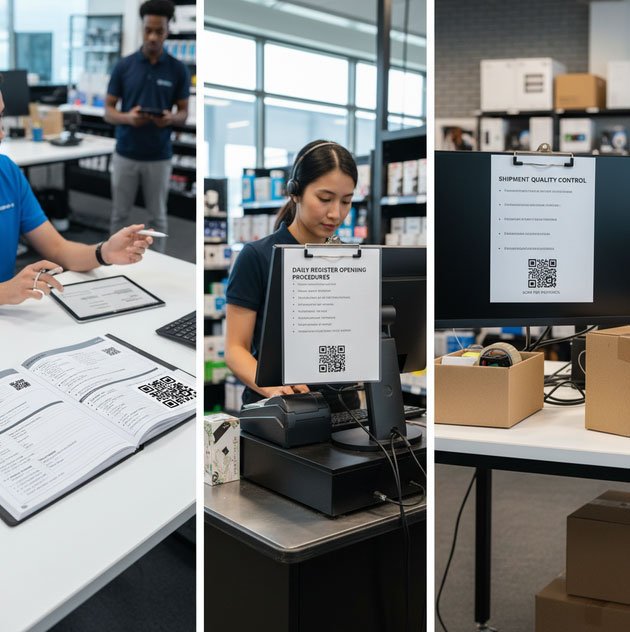
Operating Protocols
Steps, tech guides, and checklists located exactly where the work happens (desks, registers, or packing stations).
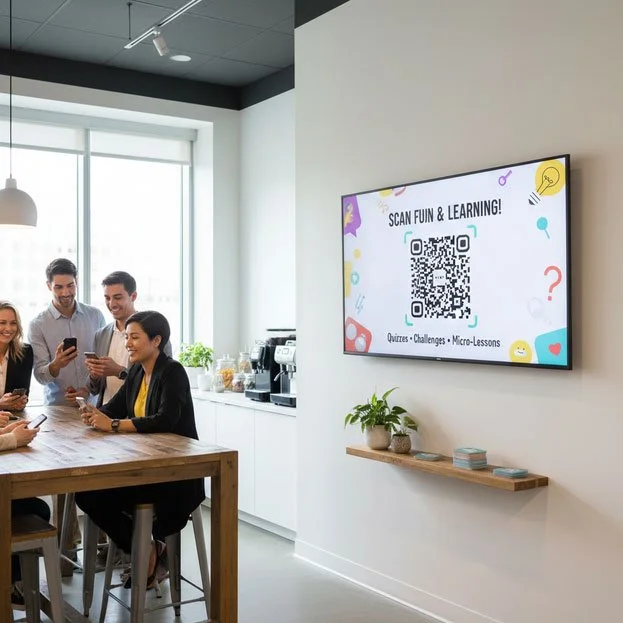
Boost Engagement
Fun quizzes and micro-learning challenges in the break room to keep things light and interactive.
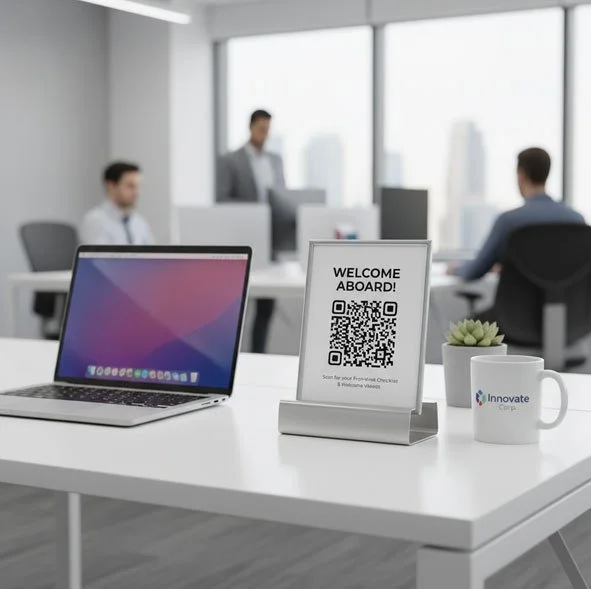
Seamless Onboarding
Positioned at new-hire workspaces to grant instant access to first-week checklists and welcome videos.