
AI-Powered Tools Help You Create Content FAST
We know that being a trainer is a demanding job. You're not just delivering information; you're building memorable learning experiences, and that requires time, creativity, and a deep understanding of your audience. After all, the heart of any great training isn't just the activities—it's the content itself.
While BRAVOZONE is already your trusted tool for engaging training games and quizzes, we also recognize that crafting truly effective content can be the biggest challenge on your plate.
Say hello to a simpler, more effective way to create content in minutes, not hours!
Introducing the BRAVOZONE AI Question Tool—our newest feature that instantly generates fresh, relevant, and highly engaging questions based on the content you provide.
You have a choice on using AI for your Organization
We realize that some companies have required protocols for AI use. This is why we leave it to the organization's administrator to disable AI. If desired, we can disable it for your organization so that neither the administrator nor anyone else can access AI or see it as an option to use.
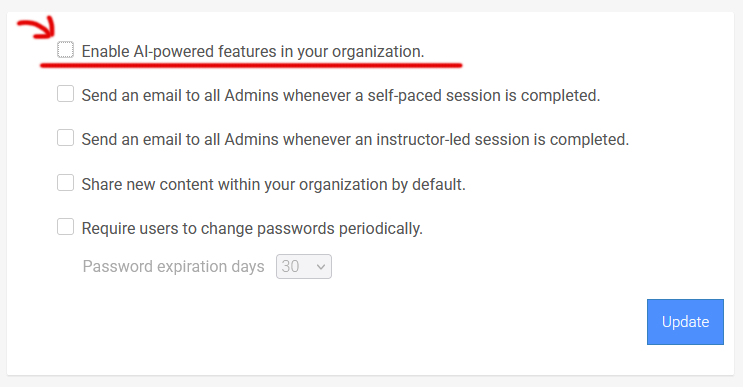
As an administrator, you can access the AI settings for your organization by clicking Admin/Settings in the BRAVOZONE menu and turning on “Enable AI-powered features in your organization.”
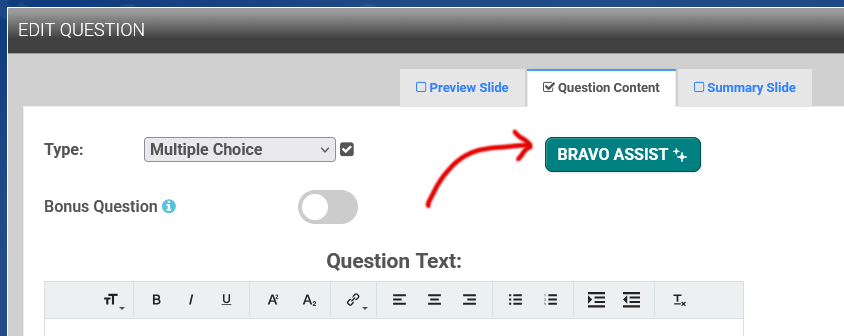
Alternatively, you can click the BRAVO Assist button within the Question Builder.
Note: Bravo Assist uses Gemini. Learn more about how Gemini manages AI
Getting Started
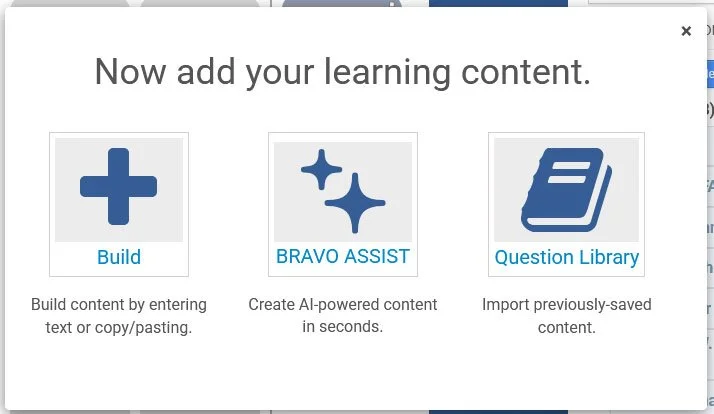
Build your session by typing them in by hand, or copying/pasting
Create AI-generated content
Import previously-saved content from your question library
When you first create a session, a pop-up will appear, asking what you would like to do.
How Does BRAVO Assist Work for Building Content?
There are two versions of BRAVO Assist in the BRAVOZONE:
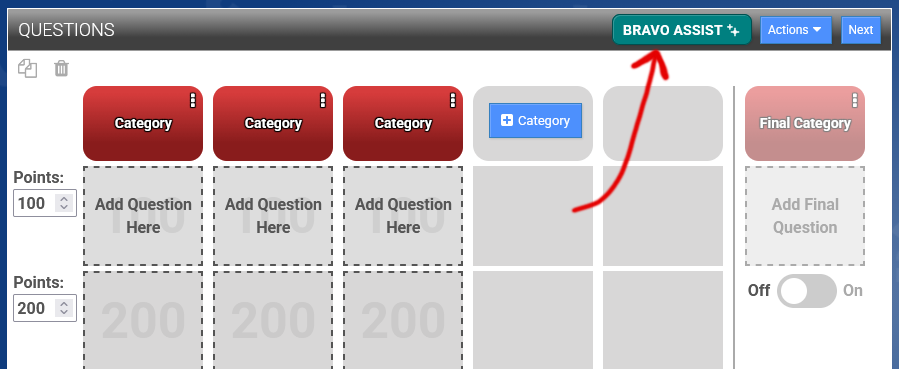
1) On your content creation page
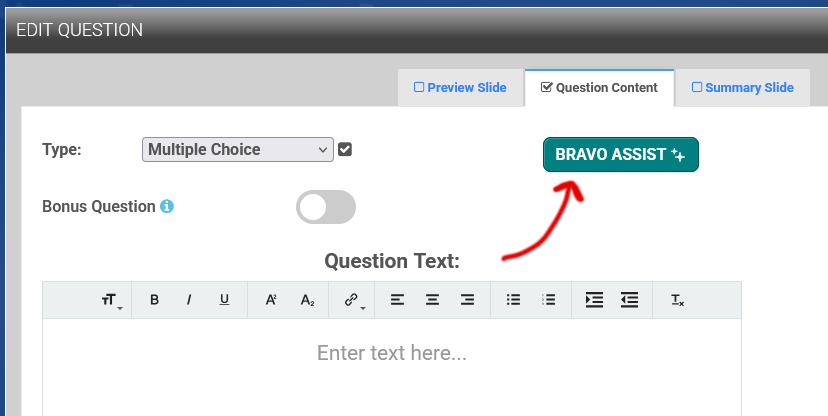
2) In the question editor itself
Including Your Learning Content
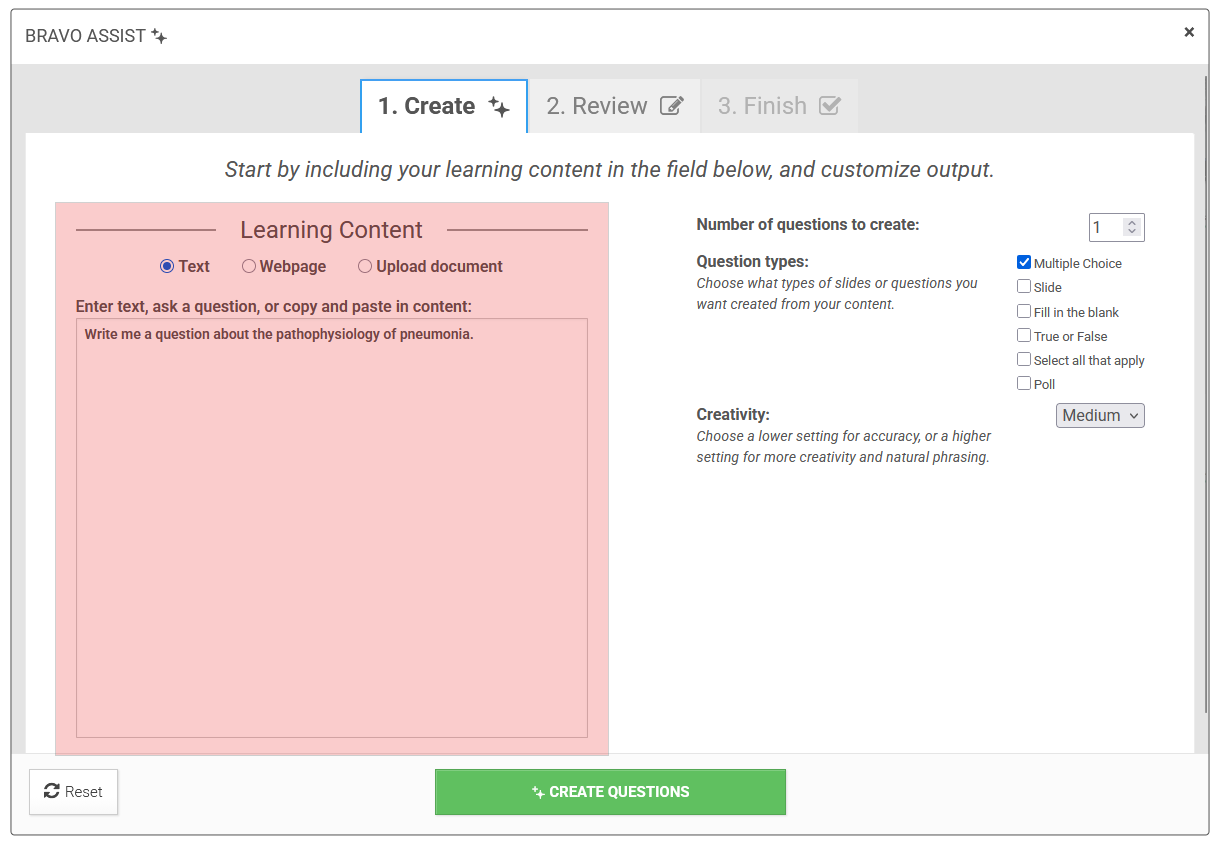
Text
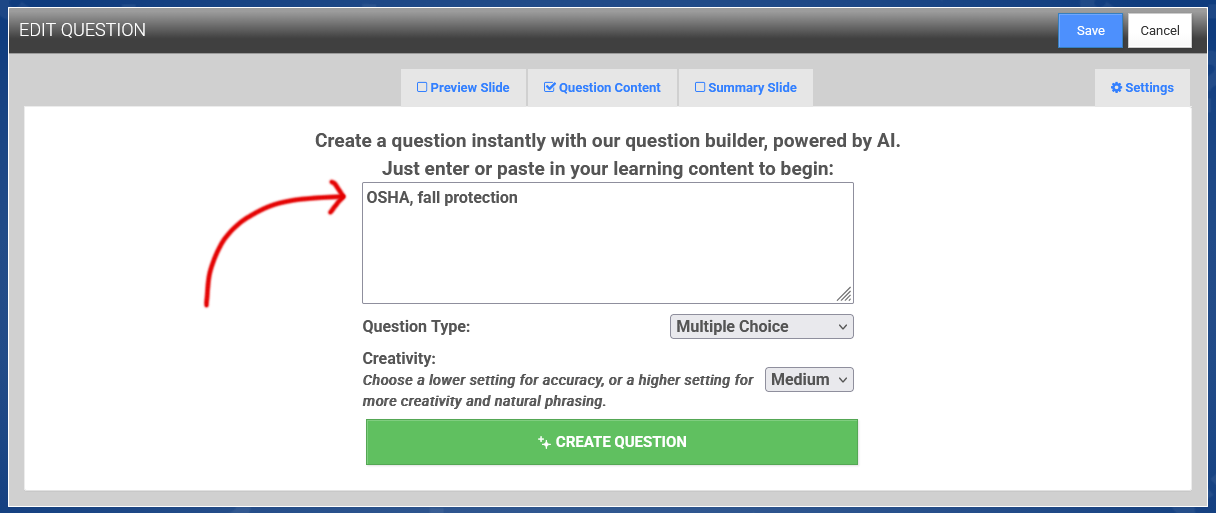
In this area, you can ask a question like “Write me a question about the pathophysiology of pneumonia," or “OSHA, Fall protection,” and BRAVO Assist will get your content from many sources. Another use of this field is that if you have a source you trust, and you want to be very specific about what you want to use to create your question, you can paste in a paragraph or two here to use.
Webpage
Enter a webpage URL that you trust. The advantage of this is that you’re controlling the source of your content.
Upload Document
By using a document, i.e., a training document, policy, CSV, or other document, you can control the source of your content.
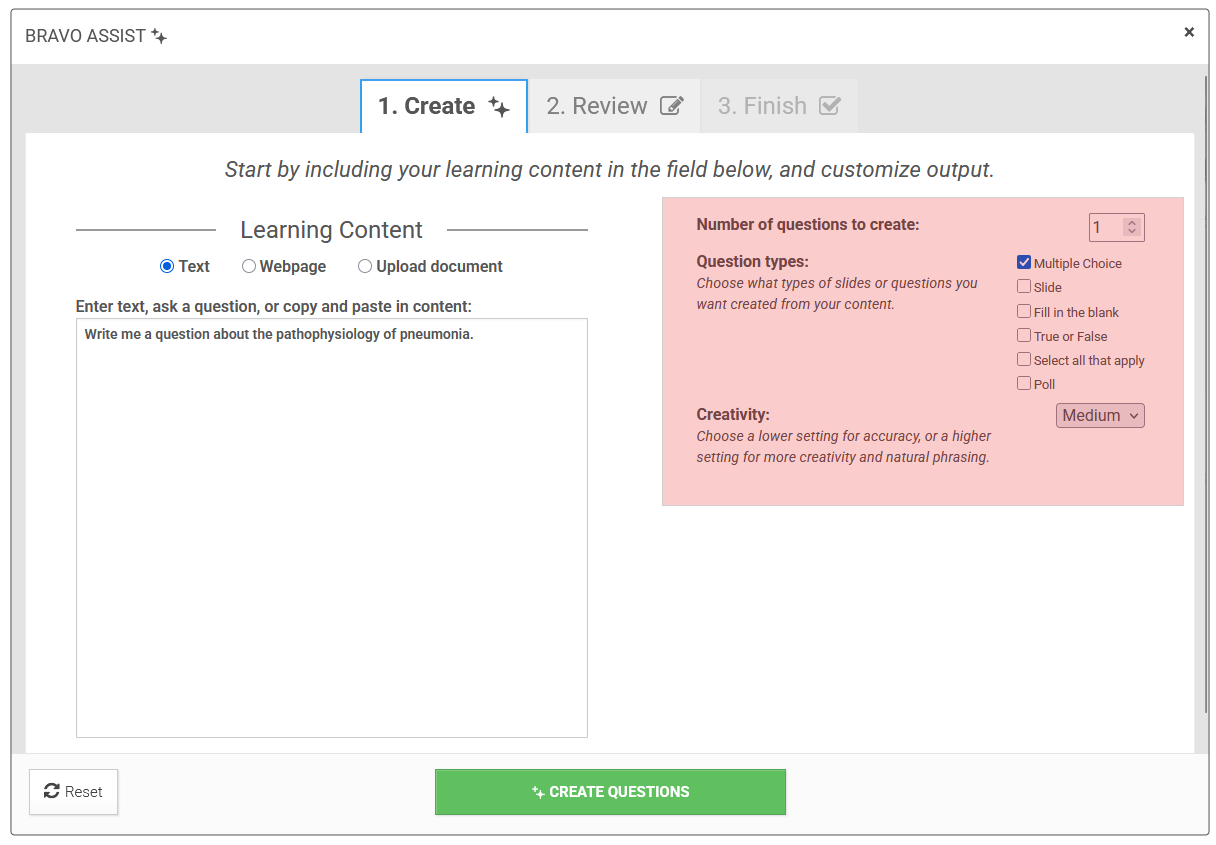
Number of Questions
Choose how many questions you may want to use and what type of questions you want have. Note: Question types are dependent on the session you are creating.
Creativity
Choose a lower setting for accuracy, or a higher setting for more creativity and natural phrasing. You have three options: Low, Medium, and High.
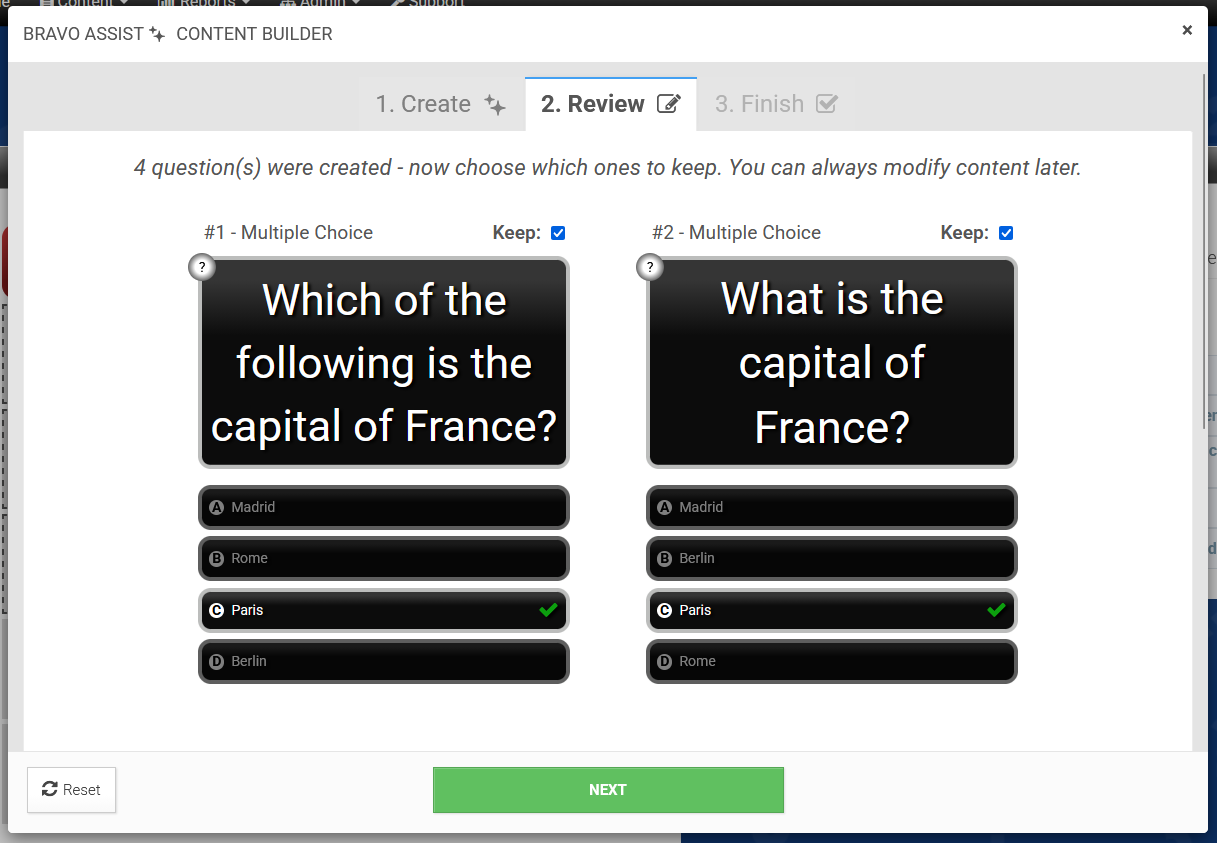
Review
After clicking Create Questions, you will see the results in the Review tab. By default, they will be selected as “Keep”. Review the suggestions, and decide which questions you’d like to keep.
Note: Please review the new questions for accuracy. Remember, AI can make mistakes, but you can always modify the content later.
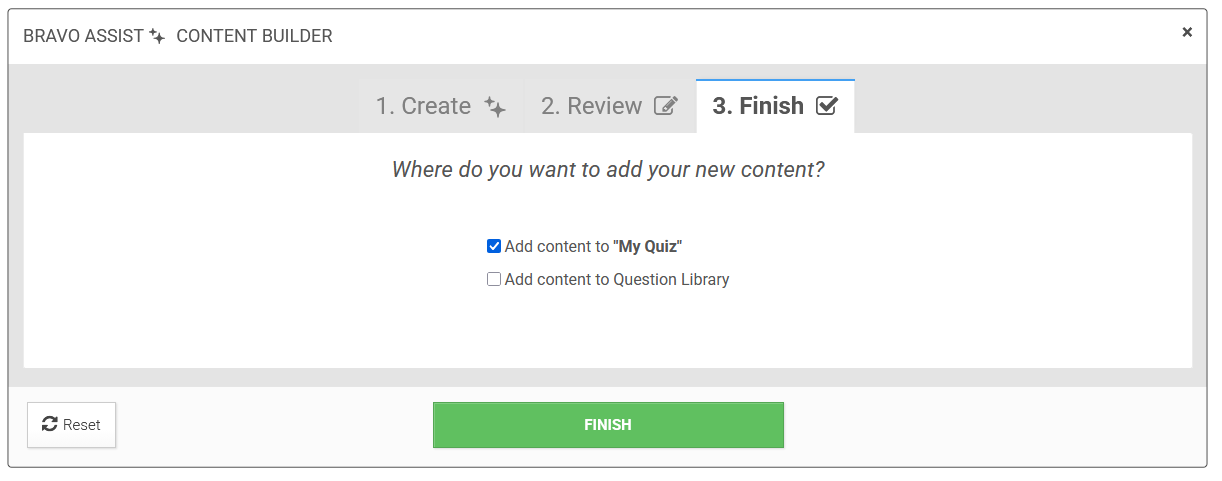
Finish
After clicking Next, you will be given an option to Add content to your session, and/or Add content to your Question Library.
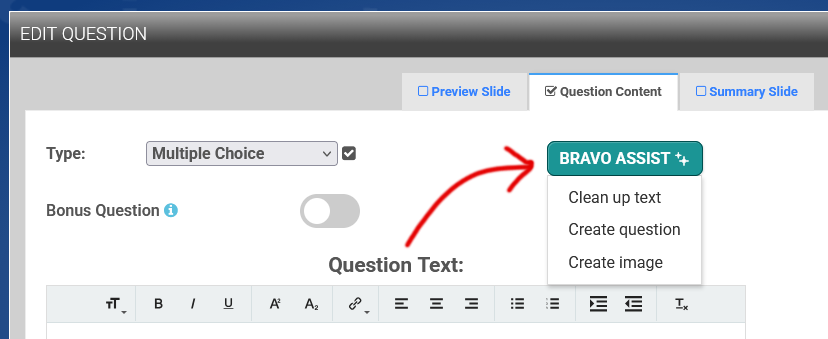
BRAVO Assist in the Question Editor
When you click the BRAVO Assist button on the Question Editor, you get three choices:
1) Clean up Text
This will check grammar and spelling, sentence structure, and give you suggestions.
2) Create a Question
In the question editor, it will create one question and allow you to choose what type of question you like to create. It will give you the options that the session provides. You can enter one of the following:
Enter a paragraph
Webpage URL
Ask a question or type in a topic
3) Create an Image
This will add the image to the question.
Create a Question
To get started, copy any content and click on Create Question. Paste your content, or you can also just ask AI to create content for you. For example, enter “OSHA, fall protection”, and AI will create a question for you.
Note: The more specific you are, the better the content. AI will then pull information from multiple sources.
Once the question has been created, you will be given three options for what to do with the content:
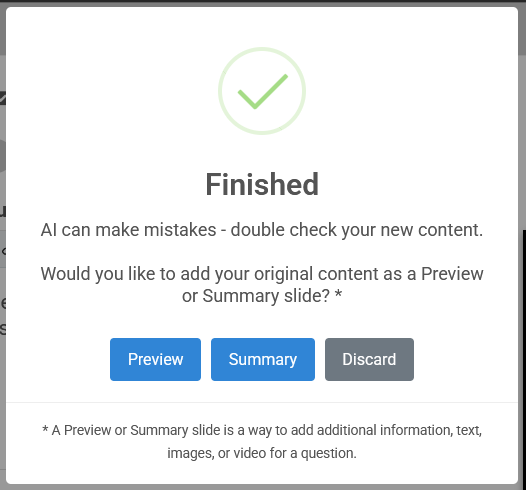
1) Preview
Introduce new material or clarifying material prior to presenting a question. The Preview Slide will allow you to use text, video or images to “set up” your question.
2) Summary
Include a Summary Slide to reinforce what they’ve just learned or expand on concepts presented in the question.
3) Discard
This option discards your originally entered text.
Create an Image
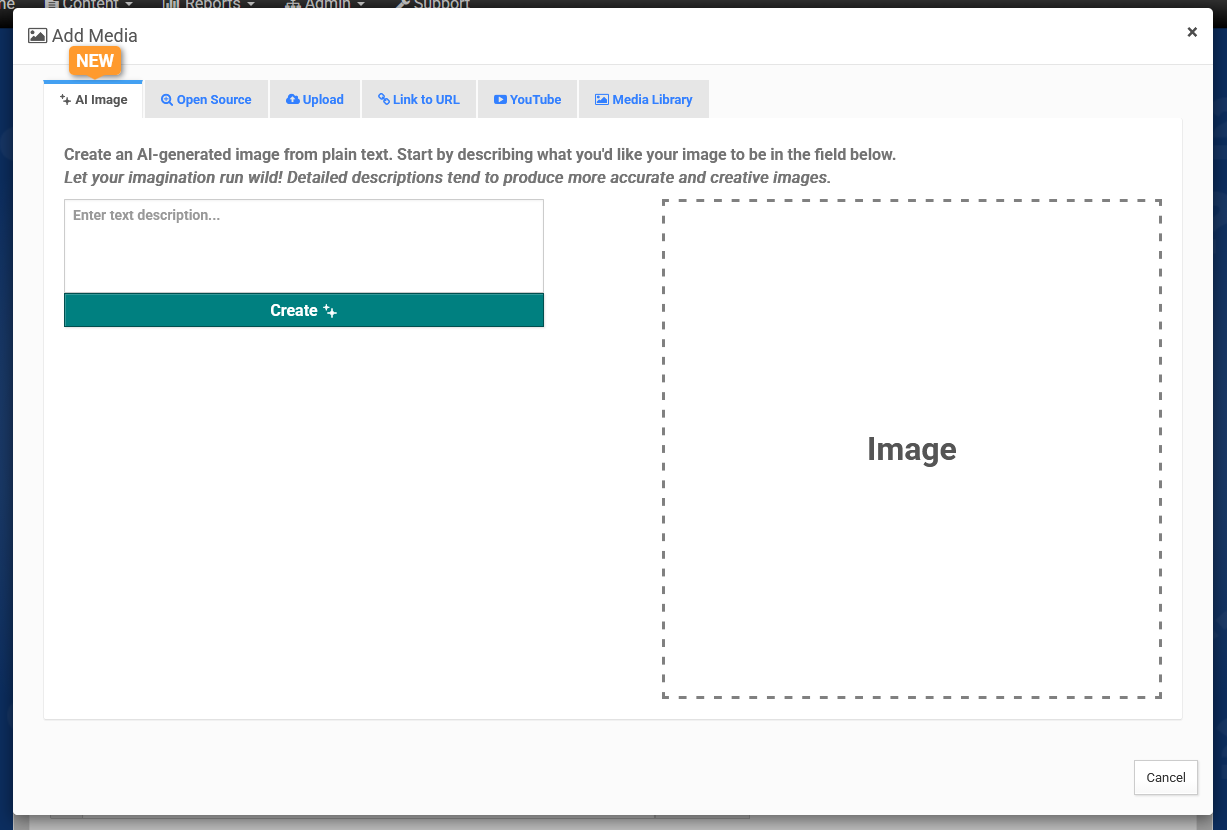
For images, you can choose to generate an image using AI Image, or use our Open Source option.
Open Source pulls from Pexels.com and are actual photos. It’s a link to a website, which could pose a problem if an organization blocks that site. When this happens, normally you just send the URL that is being blocked to your IT department to get the URL whitelisted or approved to view.
AI Image creates unique AI-generated images.
IMPORTANT NOTE: AI can create extremely realistic photos that sometimes can be flawed. Always check the results closely before selecting.
AI Image
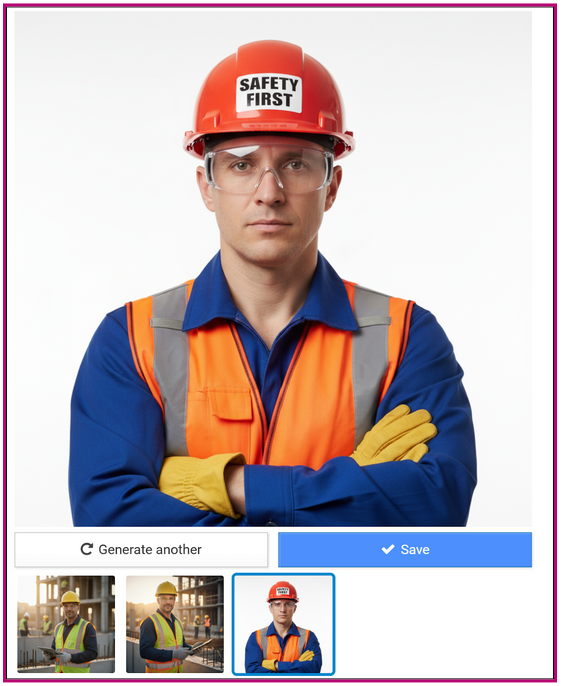
The more descriptive you are, the better the image will meet your needs.
For example, if you type in “Man with a safety helmet”, AI will do just that, as you will see in the first thumbnail at a construction site. But if you add more information, like “Man with red safety helmet, with Safety First on the front, on a white background, with safety goggles,” you get a very different result.
You can continue to change your description or just keep generating images until satisfied by clicking Generate Another.
Click Save to keep the image.